

Deleting a file feels simple. You click delete, empty the Recycle Bin or Trash, and the file appears to be gone. For most everyday tasks, that may be enough. You no longer see the file in your folders, search no longer finds it, and your computer may show the space as available again.
Behind the scenes, file deletion works differently. In many cases, a deleted file does not disappear from the storage device right away. Instead, the computer removes the reference that tells the operating system where to find the file. The drive may keep the actual data until new information saves over the same space.
This is why deleted file recovery is sometimes possible. It is also why deleting sensitive files is not always enough when privacy, security, or compliance matters. A tax document, client file, password list, medical record, business contract, or confidential spreadsheet may still be recoverable after a normal deletion, depending on the device, drive type, operating system, and what happens next.
Understanding where deleted files go helps you make better decisions about data recovery, backups, device disposal, and secure deletion. Whether you are trying to recover an accidentally deleted file or permanently erase information before selling a laptop, the basics are worth knowing
Recommended Articles to Read
- What is a data breach?
- My Business Has Been Hacked: What to Do After a Cyberattack
- Mobile Devices Are a Major Cybersecurity Risk and What Businesses Must Do About It
- 5 Ways MSPs Help Businesses Stay Cybersecurity Compliant
What Happens When You Delete a File?
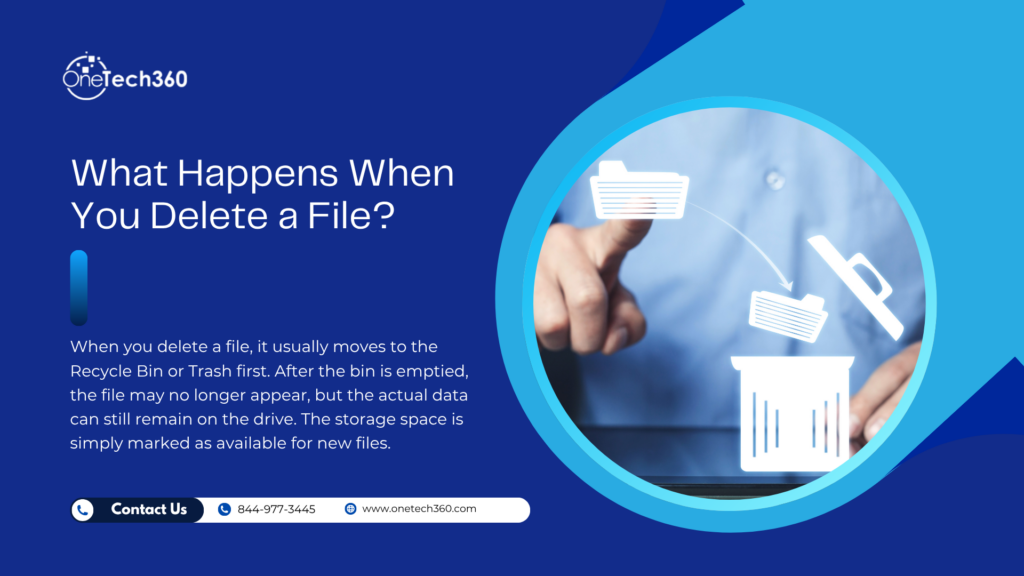
When you delete a file from your computer, the first thing that usually happens is not permanent removal. On Windows, the file often moves to the Recycle Bin. On macOS, it moves to Trash. Many cloud storage platforms, email systems, photo apps, and mobile devices also keep deleted items in a temporary recovery area for a limited time.
This first step is more like moving the file to a holding area. The file still exists, and the system still knows how to restore it. If you open the Recycle Bin or Trash and choose restore, the file can usually return to its original location with little effort.
Once you empty the Recycle Bin or Trash, things become more technical. The file typically disappears from normal view, but that does not always mean the file’s contents have been wiped from the storage device. In many traditional storage systems, the operating system removes the file’s entry from the file index and marks the space as available for new data.
Think of a file system like a library catalog. The catalog tells you where each book is located. If the catalog entry is removed, the book may still be sitting on the shelf, but the librarian no longer has an official record pointing to it. Eventually, someone may place a new book in that spot. Until that happens, a person who knows how to search carefully may still find the old book.
That is similar to how deleted files may behave on a hard drive. The operating system stops treating the deleted file as active, but the bits that made up the file may remain in place. Recovery tools try to find those remaining bits and rebuild the file before the space is reused.
Why Deleted Files Can Still Be Recovered
Deleted file recovery works because deletion and overwriting are not always the same thing. Deletion often removes only the pointer to the data. Overwriting replaces the old data with new data.
When you delete a file, your computer marks that storage space as available. Later, the system may use that same space for a software update, downloaded file, photo, document, browser cache, or temporary system file. Once new data overwrites the original file, recovery becomes much harder. In some cases, normal recovery tools can no longer restore it.
This is why timing matters. After accidentally deleting an important file, use the device as little as possible. Every new action can create new data, and that data may overwrite the area where the deleted file was stored.
What Recovery Software Looks For
File recovery software scans a drive for data that appears to belong to deleted files. It may look for old file system records, recognizable file signatures, fragments of documents, image headers, or other patterns that suggest recoverable content.
For example, a deleted photo may still have a recognizable file structure. A recovery program may identify that structure, locate the data blocks that belong to it, and attempt to rebuild the image. The same idea applies to documents, spreadsheets, videos, audio files, archives, and other file types.
The success of recovery depends on several factors, including how recently the file was deleted, how much the device has been used since deletion, whether the file was fragmented, whether encryption was enabled, and whether the storage device is a hard drive or solid-state drive.
Why Recovery Is Not Guaranteed
File recovery can be helpful, but it is never something you should rely on as your main safety net. Some files are recovered fully. Others are recovered partially. Some appear in recovery software but cannot be opened. Others are gone before you even run the scan.
There are several reasons recovery may fail. The deleted data may have already been overwritten. The file system may be damaged. The storage device may be failing. The file may have been stored in fragments across different areas of the drive. On some devices, features designed to improve performance and security may remove deleted data more quickly than expected.
Recovery software is best viewed as a last chance, not a plan. A better plan is to maintain reliable backups so that accidental deletion does not turn into a crisis.
What Happens When You Empty the Recycle Bin or Trash?
Emptying the Recycle Bin or Trash tells the operating system that you no longer want those files available for easy restoration. The files are removed from the temporary holding area, and the system marks their storage space as free.
To the average user, this looks permanent. The file is no longer visible in its original folder or in the bin. Search may not find it. Applications may not list it in recent files. But the underlying data may still be present until the device reuses that space.
On a traditional hard disk drive, the data may remain recoverable for some time. On a solid-state drive, the situation can be different because of how SSDs manage deleted data. We will cover that shortly.
The key point is simple: emptying the Recycle Bin or Trash is not the same as securely erasing a file. It removes easy access, not necessarily all traces.
How Different Devices Handle Deleted Files
Deleted files do not behave exactly the same way on every device. A Windows computer, Mac, iPhone, Android phone, external hard drive, USB flash drive, and cloud storage account may all handle deleted data differently.
Windows Computers
On Windows, deleted files usually go to the Recycle Bin first, unless the file is too large, deleted from certain external drives, removed through specific commands, or deleted using Shift + Delete. Files in the Recycle Bin can usually be restored with a few clicks.
After the Recycle Bin is emptied, recovery may still be possible if the data has not been overwritten. Windows also offers features such as File History, OneDrive backup, and system restore options, depending on how the device is configured. These tools may help restore lost files without using third-party recovery software.
Mac Computers
On macOS, deleted files usually move to Trash. Until Trash is emptied, users can restore the file. After Trash is emptied, recovery depends on whether the data still exists and whether backups are available.
Time Machine is one of the most useful recovery options for Mac users. If Time Machine was set up before the deletion happened, it may allow you to recover an older version of a file or restore a deleted file from a previous backup.
iPhones and iPads
On iPhones and iPads, deleted photos and videos usually move to the Recently Deleted album in the Photos app for a limited time before permanent removal. Other apps may have their own deleted items folders or recovery options.
iCloud can also affect file recovery. If iCloud Photos, iCloud Drive, or app-specific sync is enabled, deleting a file on one device may delete it from other synced devices as well. That can be convenient, but it can also surprise users who assume each device has a separate copy.
Android Devices
Android file deletion depends heavily on the device manufacturer, Android version, file manager app, photo app, and cloud sync settings. Many Android gallery apps include a Trash or Recently Deleted folder. Google Photos also has a trash area where deleted photos and videos may stay for a limited time, depending on backup settings.
Because Android devices vary so much, it is important to check the specific app where the file was deleted. A photo deleted from the gallery, a document deleted from a file manager, and a file removed from a cloud app may each have different recovery options.
External Drives and USB Flash Drives
External drives and USB flash drives may not always use the Recycle Bin or Trash in the same way as internal drives. In some cases, deleting a file from a USB drive may bypass the bin and remove it from normal view immediately.
If you accidentally delete files from an external drive, stop using that drive right away. Avoid copying new files to it, formatting it, or running repair tools unless you understand the risk. The less you write to the drive, the better the chance of recovery.
Cloud Storage Services
Cloud storage platforms often keep deleted files for a set retention period. Services such as OneDrive, Google Drive, Dropbox, and iCloud may offer trash, version history, or admin recovery features, depending on the account type.
For businesses, cloud retention policies are especially important. A deleted file may still be recoverable by an administrator, or it may be removed according to company rules. This can help with accidental deletion, but it also means companies need clear policies for sensitive information, account access, and employee offboarding.
HDDs vs. SSDs: Why Storage Type Matters
The type of storage device plays a major role in whether deleted files can be recovered.
How Deleted Files Work on HDDs
Traditional hard disk drives store data on spinning magnetic platters. When a file is deleted, the operating system often marks the file’s space as available. Until new data is written over that same area, recovery tools may be able to find and restore the file.
This is why older advice about file recovery often focuses on hard drives. If the drive has not been used much after deletion, the data may still be there.
How Deleted Files Work on SSDs
Solid-state drives work differently. SSDs use flash memory and manage data through a process that includes wear leveling, garbage collection, and a command commonly known as TRIM. TRIM helps an SSD know which blocks of data are no longer needed, allowing the drive to prepare those blocks for future writing.
From a performance standpoint, this is helpful. From a recovery standpoint, it can make deleted files much harder to retrieve. Once TRIM and internal cleanup processes occur, the deleted data may be removed in a way that standard recovery software cannot reverse.
This does not mean SSD recovery is always impossible, but it does mean you should act quickly and keep expectations realistic. It also means that secure deletion methods used for older hard drives may not work the same way on modern SSDs.
Can Deleted Files Be Recovered After Formatting?
Sometimes, yes. But it depends on the type of format and what happens afterward.
A quick format usually removes file system structures and prepares the storage device for use, but it may not overwrite all existing data. In that case, recovery software may still find files. A full format, secure erase process, or drive wipe may overwrite or reset the storage area more thoroughly, making recovery much less likely.
Again, storage type matters. Formatting an SSD may trigger processes that make recovery harder. Formatting an encrypted drive without the recovery key may also make the old data unreadable, even if some data remains physically present.
If you formatted a drive by accident and need the files back, stop using it immediately. The more you write to the drive, the lower your chances of recovery.
How to Recover Deleted Files Safely
If you accidentally deleted a file, take a calm and careful approach. Rushing can make things worse.
Step 1: Check the Recycle Bin, Trash, or Recently Deleted Folder
Start with the easiest option. Check the Recycle Bin on Windows, Trash on Mac, Recently Deleted on iPhone, Trash in Google Photos, or the deleted items folder in the app where the file was removed.
If the file is there, restore it. This is the safest and simplest recovery path.
Step 2: Check Cloud Storage and Sync Tools
If the file was stored in OneDrive, Google Drive, Dropbox, iCloud Drive, or another sync platform, sign in through a browser and check the trash or deleted files section. Also look for version history. If a file was overwritten rather than deleted, version history may let you restore an earlier copy.
Step 3: Look for Backups
Check your backup tools before using recovery software. Windows File History, macOS Time Machine, cloud backups, external drive backups, and business backup systems may contain a clean copy of the file.
For businesses, this is where backup policies become essential. A well-managed backup system can turn a serious deletion mistake into a routine restore request.
Step 4: Stop Using the Device
If the file is not in the bin, cloud trash, or backup, avoid using the device. Do not install recovery software on the same drive where the deleted file was stored. Installing software may overwrite the deleted data.
Use another computer if possible, or run recovery software from a separate drive. If the deleted file is extremely important, consider professional data recovery before attempting anything else.
Step 5: Use Reputable Recovery Software
Choose a trusted recovery tool that matches your operating system and storage device. Scan the affected drive and save recovered files to a different drive, not the same one being scanned.
Be cautious with unknown recovery programs. Some tools may be ineffective, overly aggressive, or unsafe. In a business environment, it is best to involve IT support before installing recovery software, especially if sensitive company data is involved.
Why Backups Matter More Than Recovery Software
File recovery is helpful when it works, but backups are far more reliable. Recovery software tries to rebuild something that may already be damaged or overwritten. A backup gives you another copy that was saved before the problem happened.
A strong backup plan protects against more than accidental deletion. It can also help with ransomware, hardware failure, theft, water damage, employee mistakes, software corruption, and failed updates.
For personal users, this may mean using an external drive, cloud backup, or both. For businesses, it should mean a managed backup and disaster recovery plan with clear retention periods, tested restores, and secure storage.
One useful rule is the 3-2-1 backup approach. Keep three copies of important data, store them on two different types of media or platforms, and keep one copy offsite or isolated. This approach helps reduce the chance that one problem destroys every copy at once.
What Is Secure Deletion?
Secure deletion is the process of removing data in a way that makes recovery extremely difficult or practically impossible. Instead of only removing the file’s reference, secure deletion aims to erase or destroy the actual data.
On a traditional hard drive, secure deletion may involve overwriting the file’s storage space with random data or a pattern of meaningless information. On an SSD, secure deletion may require built-in secure erase commands, encryption-based erasure, or manufacturer-approved tools.
Secure deletion is important when files contain sensitive information. This includes financial records, medical data, legal files, customer information, employee records, intellectual property, passwords, tax forms, and confidential business documents.
Secure Deletion vs. Normal Deletion
Normal deletion removes the file from everyday access. Secure deletion is designed to prevent recovery.
That difference matters. If you are clearing old vacation photos from your laptop, normal deletion may be fine. If you are disposing of a laptop that stored client records, normal deletion is not enough. The right method depends on the sensitivity of the data and the risk if someone else retrieves it.
Secure Erase and Drive Sanitization
For full drives, secure erase or drive sanitization is often better than deleting files one by one. Full-device sanitization may be needed before selling, donating, recycling, or reassigning a computer.
The National Institute of Standards and Technology provides detailed guidance on media sanitization in NIST Special Publication 800-88 Revision 1. For Windows users, Microsoft also provides guidance on Windows recovery and reset options, which can help when preparing a device for reuse, although businesses should still follow proper data handling policies.
How Encryption Changes the Deletion Conversation
Encryption protects data by making it unreadable without the correct key. When full-disk encryption is enabled, the data on the drive is stored in an encrypted form. This can reduce the risk of someone recovering readable files from a lost, stolen, or retired device.
Encryption does not replace secure deletion in every case, but it adds a strong layer of protection. If a device is encrypted and the encryption key is destroyed or reset properly, the remaining data may be unreadable even if it still physically exists on the drive.
For businesses, encryption should be standard on laptops, mobile devices, external drives, and systems that store sensitive information. It is especially important for remote workers and employees who travel with company devices.
What Businesses Should Know About Deleted Files
For a business, deleted files are not just a technical issue. They can affect security, compliance, operations, and customer trust.
A deleted file may still contain personal information, financial data, contracts, login details, private messages, or regulated records. If an old laptop, phone, or external drive leaves the company without proper sanitization, that data may leave with it.
Businesses also need to think about legal hold requirements, data retention policies, employee access, and backup retention. In some cases, files should be recoverable for business continuity or compliance. In other cases, files should be permanently removed after a defined period.
This is why companies should not leave file deletion practices up to guesswork. Clear policies help employees understand what to keep, what to delete, when to involve IT, and how sensitive files should be handled.
Common Business Risks Related to Deleted Files
One common risk is assuming that deleted files are gone forever. An employee may delete sensitive files from a laptop before returning it, not realizing the data may still be recoverable.
Another risk is poor backup management. A file may be deleted from the main system but remain in backups for months or years. That may be helpful for recovery, but it can create privacy and compliance concerns if retention rules are unclear.
A third risk is device reuse. When a computer is reassigned to a new employee, old data should be removed properly. Simply creating a new user profile may not be enough.
Finally, there is the risk of shadow copies and synced data. Files may exist in local folders, cloud platforms, email attachments, messaging apps, temporary folders, and backup systems. Secure data handling must account for more than one location.
How to Make Sure Files Are Really Deleted
If you need to make sure files are truly gone, use the right method for the situation.
For Individual Sensitive Files
Use a reputable secure deletion tool that is designed for your operating system and storage type. Be aware that secure deletion tools may work differently on SSDs than on HDDs. For highly sensitive data, ask an IT professional before relying on a consumer tool.
For Full Computers
Before selling, donating, or recycling a computer, back up anything you need, sign out of accounts, remove device authorization where needed, and use a proper reset or secure erase process. If the device was used for business, follow company procedures or ask IT to sanitize it.
For Phones and Tablets
Back up important data, sign out of accounts, remove the device from account management portals, and perform a factory reset. For business devices, mobile device management tools can help enforce encryption, remote wipe, and proper offboarding.
For External Drives
If an external drive contained sensitive data, format alone may not be enough. Use a secure erase process appropriate for the drive type. If the drive is damaged, old, or highly sensitive, physical destruction may be the safest option.
For Business Equipment
Use a documented asset disposal process. Track the device, confirm encryption status, perform approved sanitization, record completion, and use trusted vendors for recycling or destruction when needed.
When Physical Destruction Is the Best Option
In some cases, securely wiping a device is not practical. A drive may be broken. A device may not power on. The storage chip may be damaged. Or the data may be sensitive enough that the organization wants no recovery risk at all.
Physical destruction can include shredding, crushing, degaussing for certain magnetic media, or other approved destruction methods. This should be handled carefully, especially for businesses that need proof of destruction for compliance or insurance purposes.
Throwing a hard drive in the trash is not secure destruction. A determined person may still recover data from it. If the data matters, use a proper destruction service and keep records.
Best Practices for Safer File Management
Good file habits reduce both recovery headaches and security risks. Start by organizing important files in known locations instead of scattering them across downloads folders, desktops, email attachments, and personal cloud accounts.
Use clear folder structures and naming conventions. This makes accidental deletion less likely and makes backup planning easier. Avoid storing sensitive files longer than necessary, but do not delete business records without understanding retention requirements.
Keep backups active and test them. A backup that has never been tested is only a hope. Businesses should perform restore tests regularly so they know backups will work when needed.
Use encryption on laptops, phones, and removable drives. Keep operating systems and apps updated. Limit access to sensitive files based on job role. Review permissions regularly. Train employees on how to handle confidential data and what to do if they delete something important.
For businesses, managed IT support can help create practical policies that cover backup, recovery, secure deletion, encryption, and device retirement. These policies should be simple enough for employees to follow and strong enough to protect the organization.
What to Do If You Deleted an Important File
If you deleted something important, do not panic. Start with the safest options first.
Check the Recycle Bin, Trash, Recently Deleted folder, or cloud trash. Look at version history if the file was stored in a cloud platform. Check your backup system. Search other devices that may have synced or downloaded the file.
If those steps do not work, stop using the affected device. Avoid downloading recovery software to the same drive, saving new files, or formatting the device. For critical files, contact IT support or a data recovery professional.
The more valuable the file is, the more careful you should be. A failed do-it-yourself attempt can reduce the chance of professional recovery later.
What to Do Before Getting Rid of an Old Device
Before you sell, donate, recycle, or return a computer or phone, take time to remove your data correctly.
First, back up anything you need. Confirm that the backup opens and contains the files you expect. Next, sign out of personal or business accounts. Remove saved passwords, browser profiles, and synced accounts. Deauthorize software where needed.
Then use the proper reset, secure erase, or drive sanitization process for the device. For business equipment, do not handle this casually. IT should confirm that the device has been wiped, removed from management systems, and documented.
If the device contained sensitive data and cannot be wiped, use approved physical destruction. This is especially important for drives from legal, healthcare, financial, accounting, and professional services environments.
Deleted Files, Privacy, and Peace of Mind
Deleted files sit at the intersection of convenience and risk. It is convenient that a computer can restore a file from Trash. It is useful that backup systems can bring back lost work. But it can also be risky when people assume deletion means permanent removal.
The right approach depends on your goal. To recover a file, act quickly and avoid writing new data. For permanent removal, use secure deletion or proper device sanitization. To avoid panic in the future, build a reliable backup plan.
For businesses, the stakes are higher. Deleted files can affect compliance, security, and client trust. A clear process for backup, recovery, encryption, retention, and secure disposal helps reduce risk while keeping information available when it is needed.
Final Thoughts: Take Control of Your Data
When you delete a file, it may disappear from view, but that does not always mean it is gone. On many devices, deleted data can remain recoverable until it is overwritten, erased through a secure process, or made unreadable through encryption and key removal.
This knowledge is useful in two ways. First, it gives you a better chance of recovering files that were deleted by accident. Second, it helps you protect sensitive information when normal deletion is not enough.
Whether you are managing a personal computer or a full business network, the goal is the same: know where your data is, know how it is backed up, and know how to remove it safely when the time comes.
If your organization needs help with secure file deletion, backup planning, device retirement, or data protection policies, oneTech360 can help you build a safer and more reliable approach to managing information.